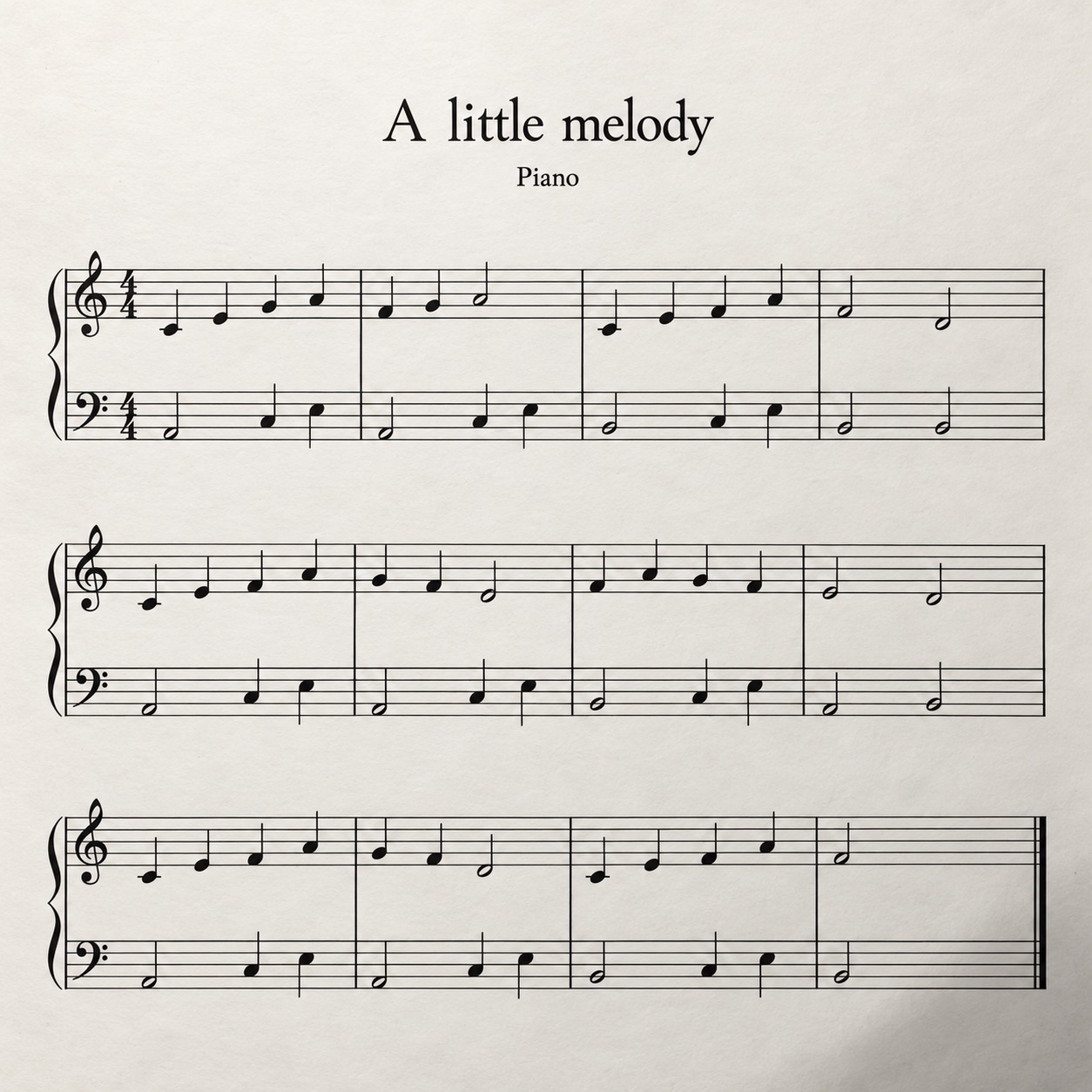
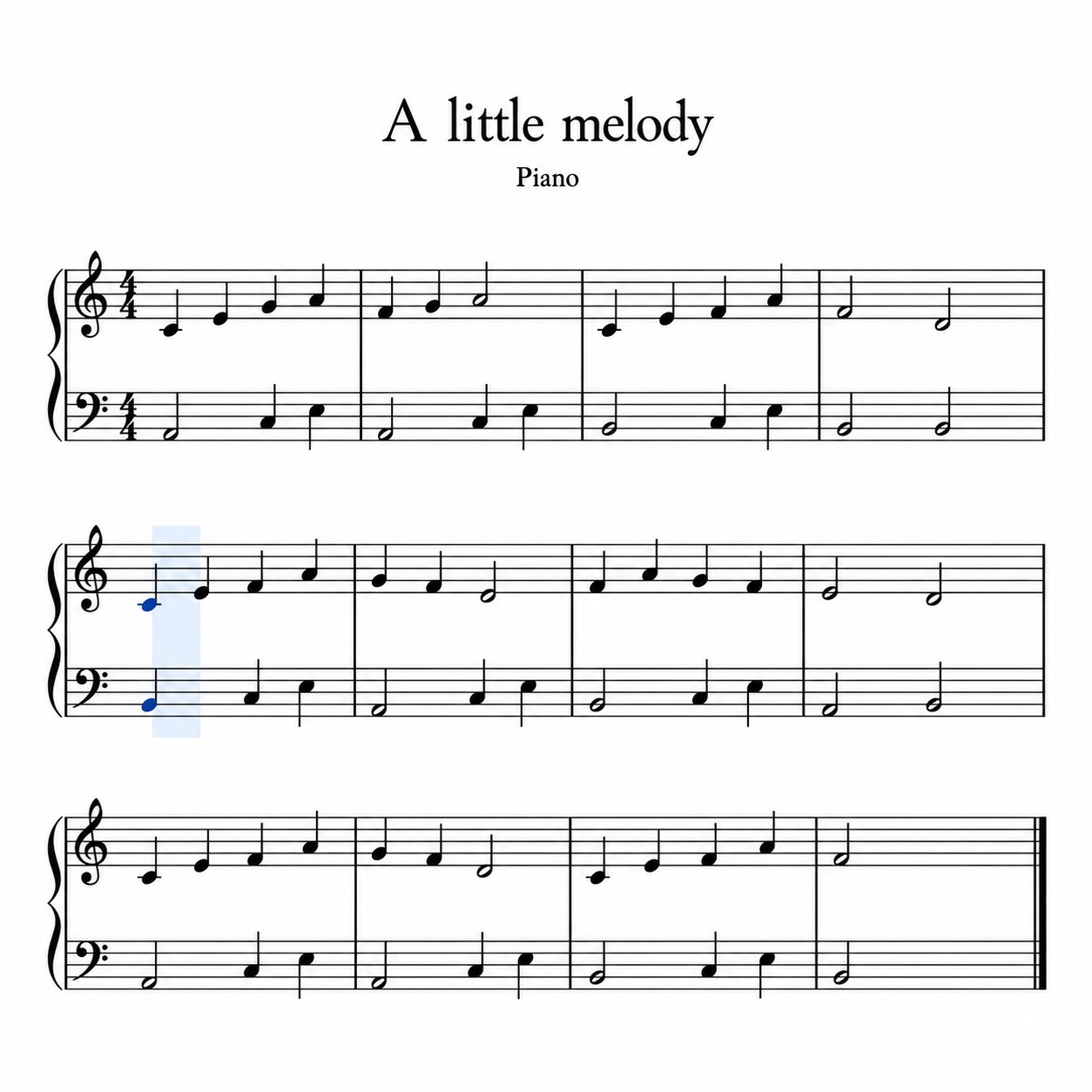
Choose scanning or MusicXML
Use the scanner when your music is a photograph or PDF. If you already have a MusicXML export, open it directly from the practice page instead: the file already describes the notes and does not need image recognition. A recording of a performance is not a sheet-music scan.
Prepare a readable page
Place printed music on a flat surface and photograph it straight on. Include the clefs, key signature, time signature and the ends of every staff. Use even lighting, avoid shadows from your phone and keep the camera steady. Check that staff lines remain separate when you zoom in. Handwriting, skewed pages and blurred symbols make recognition less dependable.
Open your photos or PDF
Choose photos or PDF in the scanner, or drag files anywhere over the right-hand upload panel. Multiple photos can be selected together; select a PDF on its own rather than mixing it with photographs. On a device that offers the camera option, Take photo lets you capture a page. File selection starts recognition automatically.
Understand the first-use download
Recognition runs in your browser, so the original pages are not uploaded for processing. The recognition model must download on first use; that preparation can take longer than later visits. Keep the page open while the progress indicator advances. A device with limited memory may struggle with large documents, so start with a short excerpt if a full score fails.
Check the music before trusting playback
Compare the recognised notation against the original, beginning with the clef and key signature. Then check accidentals, dotted notes, rests, ties and chords. Listen to a short passage while following both versions. A score that plays smoothly can still contain a wrong pitch or rhythm; successful recognition is not the same as a correct transcription.
Play, practice or save the result
Use playback to hear the recognised score, then open practice to work through its notes. Download MusicXML if you want to keep an editable copy or continue in notation software. Keep the original image as your reference. If a note needs editing, correct the MusicXML in a notation editor and reopen the corrected export in practice.
If the scan misses notes or finds no staves
Try a sharper, straighter image with better contrast and the full staff visible. Remove surrounding desk space without cutting off notation. If a PDF page is a low-resolution scan, exporting the same blurry image again will not recover missing detail: use a better source or photograph the original. If preparation fails, check your connection for the model download and try a smaller document.