Your music. Your pace. Your next step.
Turn sheet music into hands-on practice. Follow the notes, play along and hear your progress through the piece.
Play along.
At your own pace.
Follow the highlight on the score and play the matching keys. When you match the notes, the score moves on.
Start with one hand or both. Use Play to hear the piece first; adjust the tempo for playback and accompaniment.
Choose a sample to begin ↓Tap the highlighted C key to try it.
On-screen keysTry it straight away. Tap or click the highlighted keys—no instrument needed.
MIDI keyboardPlug in your keyboard, then choose Connect MIDI in a compatible browser.
MicrophoneMatch the highlighted notes on your instrument using your microphone. Audio stays on your device.
Try it with a sample
Start with a passage you can read slowly. Listen once, then play one hand at a time on a keyboard part that separates the hands. When you use note matching, the score waits for the expected notes. Use regular playback separately to check whether you can keep the pulse through the same passage.
Build confidence with familiar melodies, one note at a time.
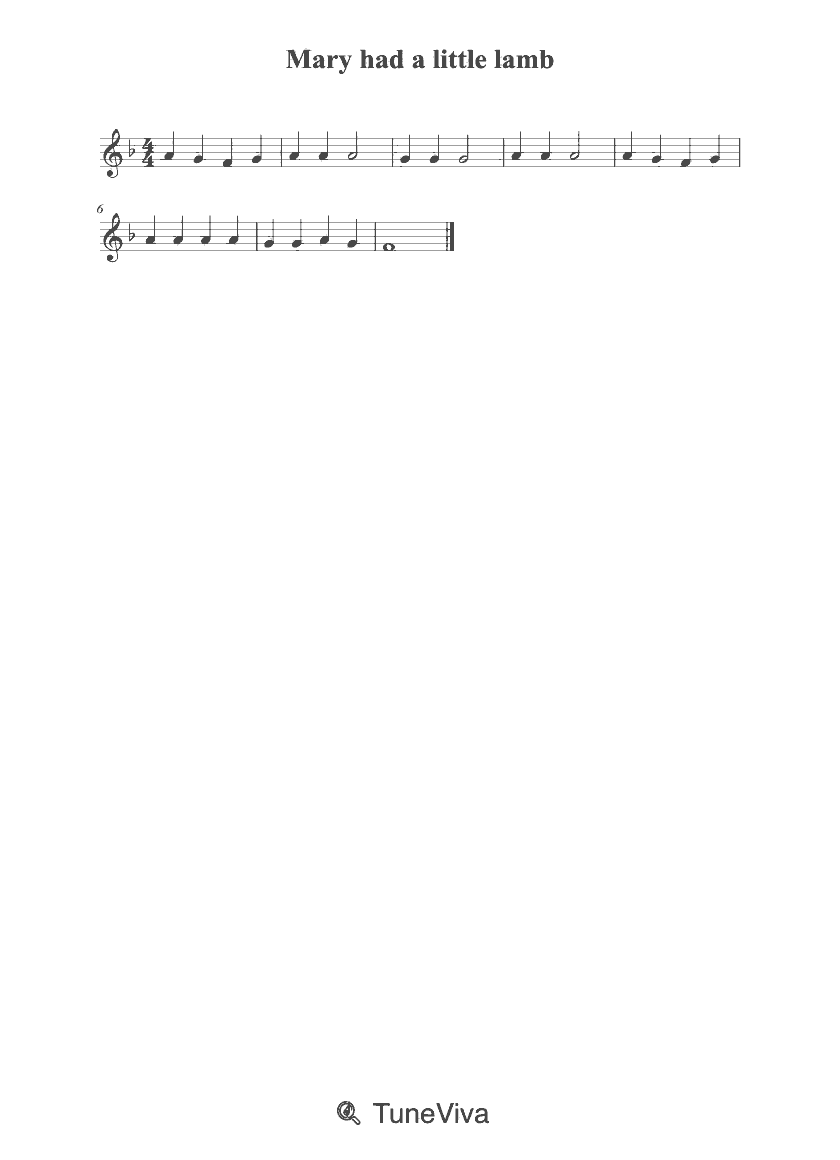
Mary had a little lamb
Start here · 3 white keys · 8 bars
anon.
Practise this score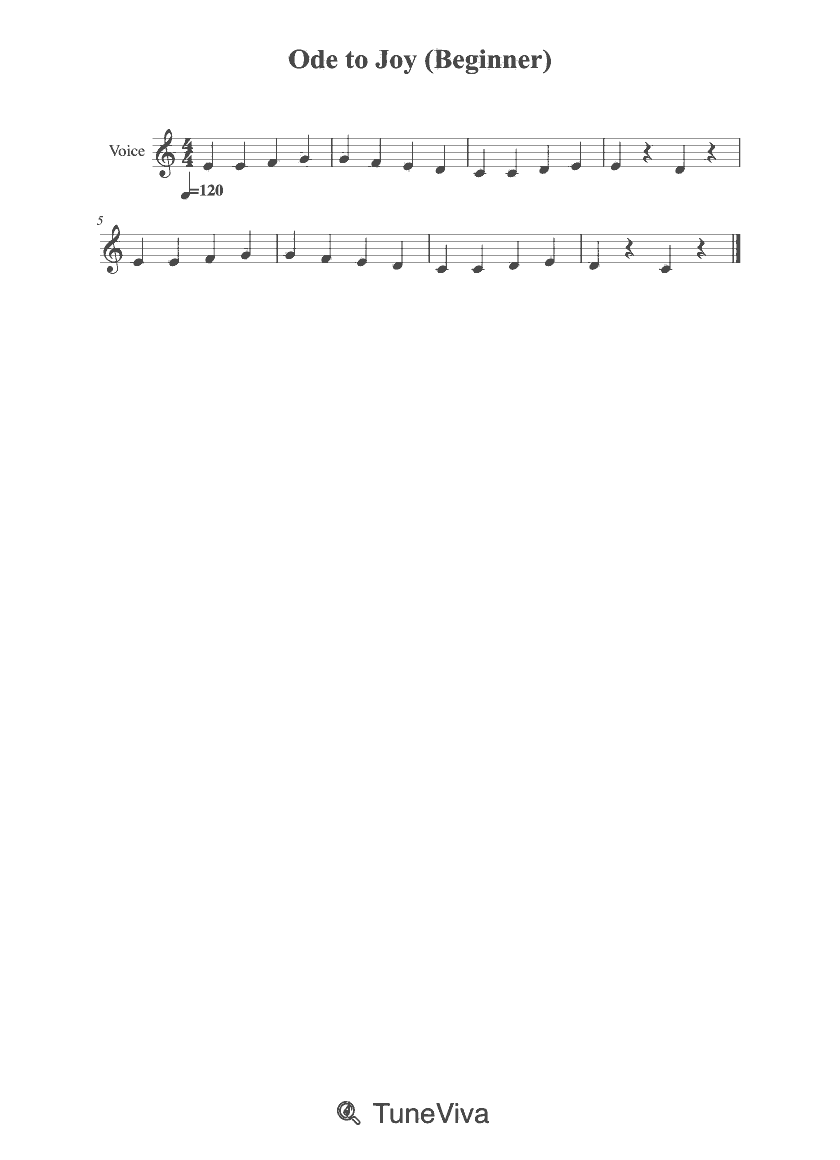
Ode to Joy (Beginner)
5 white keys · 8 bars · steady rhythm
Ludwig van Beethoven
Practise this score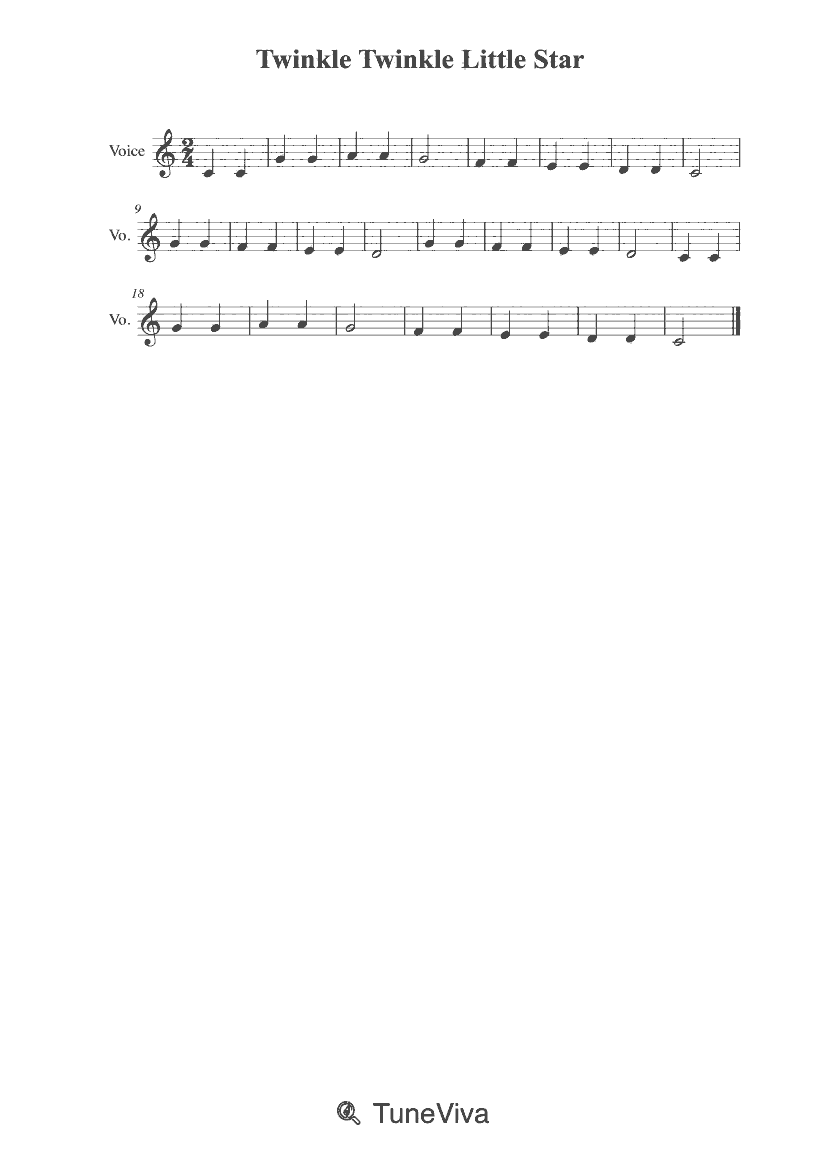
Twinkle Twinkle Little Star
6 white keys · a longer, familiar melody
Misc Children
Practise this scoreThese scores open directly in the workspace. No upload needed.
Make every session your own
The score follows your playing
Follow the highlighted notes and play the matching keys. The score waits for you and moves forward when you match them, giving you time to find your way through each phrase.
Three ways to play
Start straight away with the on-screen piano, connect a MIDI keyboard, or use your microphone to match notes from your instrument. Choose the input that fits your setup. Microphone audio is processed on your device.
Build up the piece at your pace
Focus on the left hand, right hand or both. Listen to the piece first, adjust playback and accompaniment tempo, and restart whenever you want another pass.
Bring the music you want to learn
Choose a catalogue score, open your own MusicXML file or send recognised sheet music straight from the scanner into practice. Imported MusicXML stays in your browser.
Piano practice questions
Where can I practise piano with interactive sheet music?
TuneViva brings sheet music and an interactive piano into your browser. Choose a sample, open a catalogue score with the Practise this score option, or bring your own MusicXML file. Follow the highlighted notes using on-screen keys, a MIDI keyboard or microphone input.
Is there a piano practice tool that waits for me to play the right notes?
Yes. TuneViva’s practice workspace waits for you to match the highlighted notes before moving forward. Take your time finding the keys and work through the piece at your own pace. Choose Left, Right or Both to focus on the part you want to practise.
Can I practise sheet music with my MIDI keyboard online?
Yes. Connect your MIDI keyboard, open a score in TuneViva’s practice workspace, then choose Connect MIDI and allow MIDI access in a browser that supports Web MIDI. Play the highlighted notes on your keyboard to move through the score.
Can I practise piano using my computer’s microphone?
Yes. Open a score in TuneViva’s practice workspace, select Mic and allow microphone access. Play the highlighted notes on your instrument; the workspace uses the detected notes to follow your playing. Microphone audio is processed on your device.
Can I practise my own MusicXML files online?
Yes. Choose Open MusicXML on TuneViva’s practice page and select an .xml, .musicxml or .mxl file up to 2 MB. Your file stays in your browser. You can listen to it, follow the highlighted notes and practise one hand or both.